

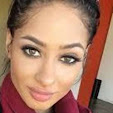
How to edit headshots in Photoshop is the most spread out and popular question nowadays. Because of the profound usefulness of this service and its attractive representation makes it standalone amongst others. Mainly, this headshot photo editing is designed to remove flaws or imperfections from pictures.
In this technologically evolving era, photography makes a significant impact on almost every industry. And popular entrepreneurs or influencers, corporate business owners, or even models or actors widely use headshot retouching to present them to their respective communities. It might be right if I say that this service comes into existence to not spoil the appeal of headshot photographs by removing flaws or imperfections.
How to Edit Headshots in Photoshop:
In this segment, you’ll learn the best and easiest way about how to edit headshot in Photoshop with ease. So, let’s start:
First Step - Open Your Images:
The very first step of editing headshots are to open your images on Photoshop. So, go to your Photoshop —> File —> Open. Or, if you want you can drag and drop your images on Photoshop.
Second Step - Make a Duplicate Background Layer and Name It:
After that, you'll see a layer called background on the right. Now go to the background layer and click the right button from your mouse and a pop-up window will appear with many options. Select “duplicate the layer” from the options and rename it as "Retouch."
Third Step - Use Healing Brush Tool to Eliminate Spots:
On the left side of the toolbar pick the spot healing brush instrument, to eliminate any spots from the skin and edify it spotless. You'll be able to use the healing brush tool from your Keyboard by pressing “H” to activate it. And it'll eliminate the spots from the skin automatically.
Fourth Step - Make a Duplicate Retouch Layer and Name It:
Afterward, you need to duplicate the “Retouch layer” and name it “Blur.” This blur layer will support you with skin smoothing.
Fifth Step - Execute Gaussian Blur on The Blur layer:
Next, run for Filter —> Blur —> Gaussian Blur, then a pop-up window will appear to pick how much blur you wish for in the picture.
Sixth Step - Again Duplicate "Retouch Layer" and Name It:
It's time to duplicate the retouch layer, and rename it with “Texture.” This layer stays on the surface of every layer so pull it on the upper of the "Blur" layer.
Seventh Step - Using Apply Image:
Select the Texture layer and run Edit —> Apply Image. From the "apply image" pick the “blur layer” choice and keep the blending to deduct.
Eighth Step - Transform the Blending Mode to Linear Light:
Now you need to transform the blending mode to linear light and look at how nice the overall texture takes place on the picture.
Ninth Step - Generate a Layer Mask:
Next, draw a layer mask over the utmost up of the “Texture” layer. And it'll support your skin smoothing of your headshot picture.
Tenth Step - Employ a Soft Brush Apparatus and Paint the Headshot Face:
It's a tactic that is familiar as frequency separation. Just start illustrating the grudging portion of the object's face and you will witness those parts become smooth.
Final Step - To Fix the Contrast Use the Curves Adjustment Layer:
Finally, select the Curves adjustment layer and simply pull the curves slightly upwards from the midpoint. It'll generate an outstanding contrast in your headshot picture.
Conclusion [Headshot Retouching Services]:
At last, these are the most important and useful steps to edit headshots in Photoshop with ease. If you read this tutorial blog carefully, I can assure you that it won’t take you to astray.
Happy Editing.



0 Comments